
Local AI web search in Open WebUI
Authored by GTM Planetary
Running large language models (LLMs) locally with tools like Ollama is a game changer for privacy and cost. You get the power of models like Llama 3, Mistral, or even gpt-oss:120b right on your own hardware. But there’s one crucial piece missing: access to the real time internet. Without it, your LLM is stuck in the past, unable to answer questions about current events or research new topics.
This guide will show you how to fix that. We are going to connect Open WebUI, a fantastic user interface for your local LLMs, to a self hosted SearXNG instance. This will give your model the ability to autonomously search the web whenever it needs fresh information. Best of all, this entire setup is free, open source, and completely private.
What You’ll Need
Before we start, make sure you have a few things ready:
- Docker: The container platform we will use to run SearXNG.
- Open WebUI: Installed and running on your server (this guide assumes it is running directly on the host, not in Docker).
- Ollama: Set up with your favorite models downloaded and ready to go.
The Problem: Why Direct Connections Fail
If you have tried to connect a search engine to Open WebUI before, you might have run into a frustrating 403 Forbidden error. This happens because the default configuration for many search tools, including SearXNG, is designed for public web browsing, not for being used as an API by another application. These security features are helpful, but they block Open WebUI from making requests.
The Solution: A Custom SearXNG Configuration
To solve this, we will create our own simple configuration file for SearXNG that explicitly allows API like access. This tells SearXNG to trust the requests coming from Open WebUI.
First, create a dedicated directory for your configuration:
bashmkdir -p /opt/searxng
Now, create a settings.yml file inside that directory. This command uses a cat heredoc to write the file for you:
bashcat > /opt/searxng/settings.yml << 'EOF'
use_default_settings: true
server:
secret_key: "changeme_to_a_long_random_string"
limiter: false
public_instance: false
search:
formats:
- html
- json
EOF
This simple configuration does two important things: it disables the rate limiter that can block requests, and it ensures the json format, which Open WebUI needs, is enabled.
Running SearXNG with Docker
With our custom settings file ready, we can now launch the SearXNG container. We will mount our new settings file so it uses our permissive configuration.
First, make sure no old versions of the container are running:
bashdocker rm -f searxng
Now, launch the new container:
bashdocker run -d \ -p 5001:8080 \ --name searxng \ -v /opt/searxng/settings.yml:/etc/searxng/settings.yml:ro \ searxng/searxng:latest
A Quick Note on Security
In the command above, we are using port 5001. For your own setup, it is a good security practice to choose a random, unused port number (e.g., 17384, 25092, etc.). This is a simple form of security through obscurity. It makes it much harder for automated bots scanning the internet to find your open SearXNG instance, as they typically only check common ports.
Configuring Open WebUI
Now we just need to tell Open WebUI where to find our new search engine.
- Log in to your Open WebUI instance and go to the Admin Panel.
- Navigate to Settings and then Web Search.
- Set the following values:
- Web Search: Toggle to ON.
- Web Search Engine: Choose
searxngfrom the list. - Searxng Query URL: Enter the URL for your instance, using the port you chose. For example:
http://localhost:5001/search.
- Click Save.
Enabling Web Search for Your Model
The final step is to give your model permission to use the new tool.
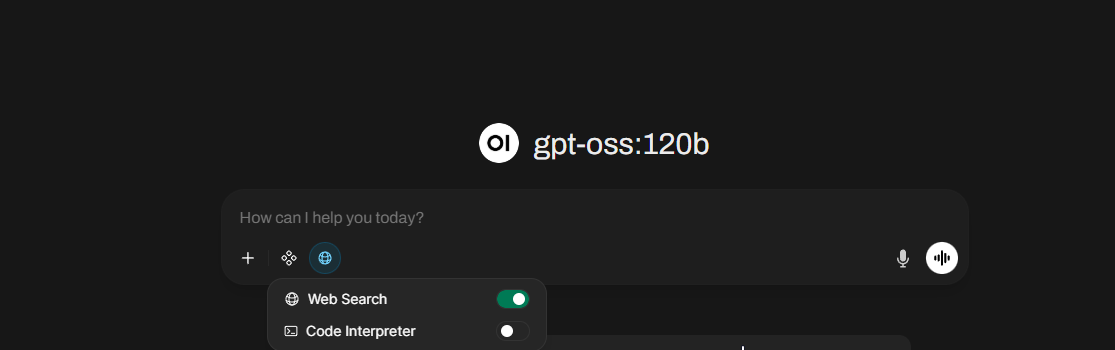
- From the main chat screen, start a new chat.
- Click the tools icon (it looks like a wrench or plus sign) next to the text input field.
- Toggle Web Search to the ON position.
That’s it! You are all set. Now, when you ask your local LLM a question about a recent event or a topic it has not been trained on, it will automatically reach out to your private SearXNG instance, get the information it needs, and provide you with an up to date, informed answer.
Enjoy your newly supercharged, internet connected local LLM!